Members and groups
Security findings nobody fixes are just a list. The people who fix things have to be in the console, and they should get exactly the access they need on their first sign-in, not after a week of tickets.
Access comes from groups, so the group decision is the real decision. Everything on this page lives under Settings › Members.
Invite a member
You need members:invite. When no group grants the role on an organization yet, the invite creates one, and that also needs groups:create.
- Open Settings › Members and choose Invite member.
- Enter their Email. It must be at your tenant's email domain: invites only go to your own company's addresses.
- Under Organizations, pick the ones they work on. They get access there and on every organization under it. Nothing is picked for you, and the root gives every organization.
- Under Role, pick what they can do there. It starts on Viewer, which reads everything there and changes nothing. Administrator, Security admin, Auditor and Billing admin hold tenant-level permissions, so pick only the root for them.
- Choose Send invite.
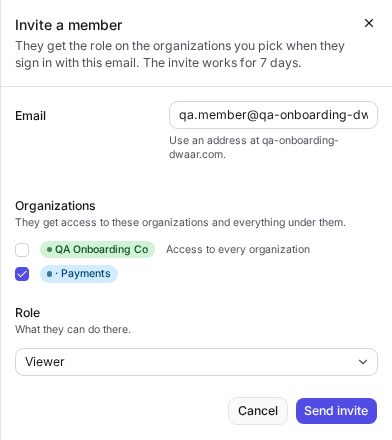
Pick the organizations they actually work on. Choosing the root because it is quicker gives them everything, and you will be the one explaining that in the next access review. Adding them to another group later takes a minute.
What you should see
The invite is listed under Invites as Pending, and it already lets them sign in to your tenant. Dwaar emails it, and Settings › Emails lists the email as Member invite. It names you, the role and the organizations, and links to your console's sign-in page. When no email goes out, the confirmation says so: tell them yourself.
They sign in with that address, once the sign-in service has verified it, and land with exactly what you picked: the role on those organizations and everything under them, and nothing anywhere else. Their organization picker also lists the organizations above the ones you picked, but the role does not apply there.

The invite gives the role through one group per organization: the group that grants exactly that role there, or a new one named after both, such as Payments · Viewer. The Joins column of Invites shows them.

An invite works for 7 days. Resend renews it for another 7 days and emails it again. Revoke stops it working and takes back the sign-in it gave them.
Create a group
A group grants one role, on the organizations you pick and their children, to its members.
- Open the Groups section and choose New group.
- Name it, and describe what it is for.
- Choose a Role.
- Choose Organizations. Pick at least one.
- Choose Members.
- Save.
Give someone a second group when they need a second role. That is exactly what the Approver role is for: it is an add-on, given in its own group.
The two built-in groups
Administrators and Viewers come with every tenant. They keep their role and organizations, and you only choose who is in them. An invite that gives Administrator or Viewer on the root puts the person in one of them.
Only administrators can change the Administrators group, and it must always keep at least one active member. Dwaar refuses to remove the last one, so you cannot lock everybody out by accident.
You cannot grant what you do not hold
Dwaar checks every grant against your own access, an invite's included. If you do not hold a permission on an organization, you cannot hand it out there, and the request comes back as escalation. This is what lets you delegate group management without creating a back door to Administrator.
Suspend or remove a member
| Action | Effect |
|---|---|
| Suspend | Temporarily stops the member. You can reactivate them later. |
| Remove | They lose access immediately, their API keys stop working, and they can no longer sign in to your tenant. Their past activity stays in the audit log. |
If an invite created their sign-in account and no other tenant has them, the account is deleted too. Someone who created their own account keeps it.
Deleting a group is also immediate: its members lose the access it gave them at once. You cannot remove or suspend yourself.
Try this next
Invite one person as AppSec engineer on one organization, such as Payments. Have them sign in and tell you what they can and cannot do. Ten minutes of that beats an hour of reading permission tables. Then open Groups: the invite made Payments · AppSec engineer, and the next invite with that role there joins it too. When you need the table anyway, it is in Permissions.