Suggest products and lineage with AI
You connected source control, a registry and a cloud account, and now you have a long list of resources and no idea which ones ship together. Sorting that out by hand means opening each repository and each pipeline. Suggest with AI does that first pass for you, and you make the decisions.
Dwaar AI proposes, and a person applies. Nothing changes until you approve it.
What it can suggest
| Suggestion | What it proposes | Example |
|---|---|---|
| Lineage link | One resource feeds another | This repository builds that image |
| Add to product | A resource belongs in an existing product | This image belongs in Lending Portal |
| New product | A group of resources that should be a product of its own | A service, its image and its deployment become Notifications |
It works with source code, artifacts, cloud resources and vendors. APIs, AI agents and build tools are not part of it yet.
Prerequisites
Dwaar AI must be on in Settings › AI. Then what you can do depends on your permissions:
| To do this | You need |
|---|---|
| Ask for suggestions | ai:use on the organization, and read access to the resources |
| Decide a lineage link | resources.lineage:update |
| Decide an Add to product | resources:attach, and products:update on the product's organization |
| Decide a New product | products:create, resources:attach and products:update |
Rejecting takes the same permission as approving. By default, a Developer can ask for suggestions but needs an AppSec engineer, Security admin or Administrator to approve them. See Permissions.
Asking is for signed-in people only. An API key can't start a run.
Ask from where you are working
Where you ask decides what comes back.
| Start from | Button | What you get |
|---|---|---|
| A product's Overview, on the Lineage card | Suggest with AI | Links and resources that belong to this product's chain |
| A resource's Lineage tab | Suggest with AI | Links and products for this one resource |
| Products | Suggest products | Links, resources to add, and new products, across what you can see |
| Products, on the Not tracked tab | Suggest products | Only resources no product tracks: where each belongs, or the new product it should be part of. No links |
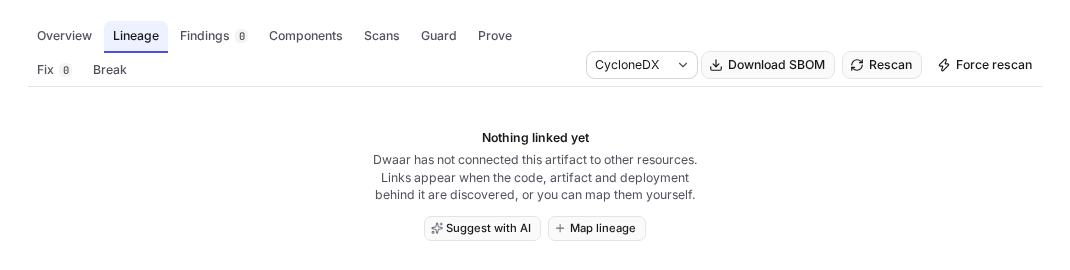
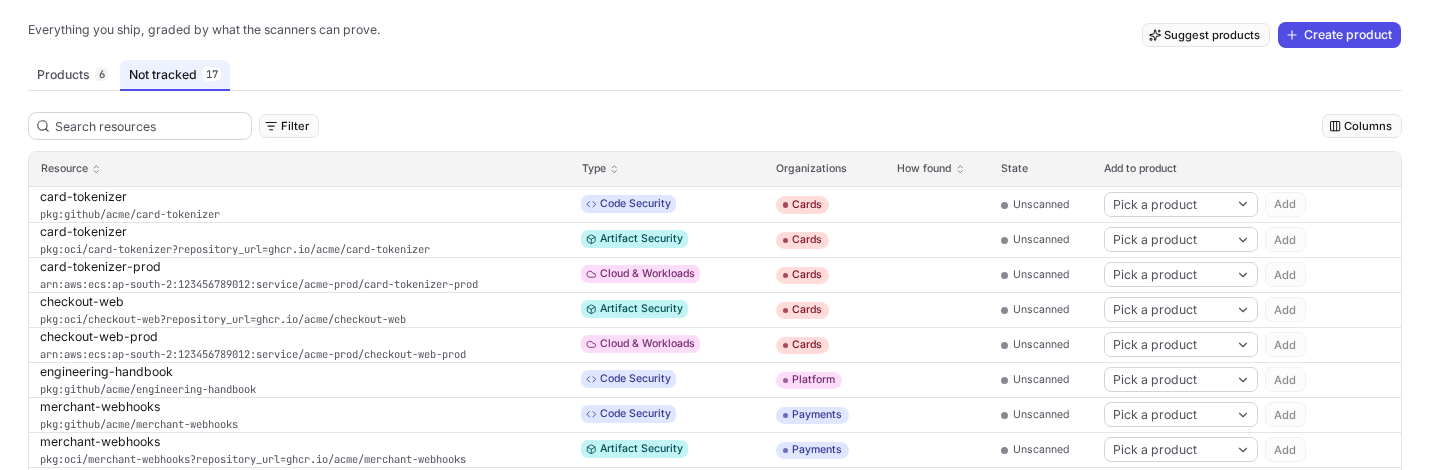
If suggestions are already waiting, the pane opens on them and no new run starts, so a teammate can pick up where you left off. If there are none, opening the pane is the request. Suggest again asks afresh and replaces what was waiting. Decisions already made stay.
Review what comes back
Each suggestion is a card with its confidence, one sentence of reasoning, and the evidence behind it. Read the evidence: it names what the suggestion rests on, so you can check it. Proposed links are drawn dashed on the graph at the top.
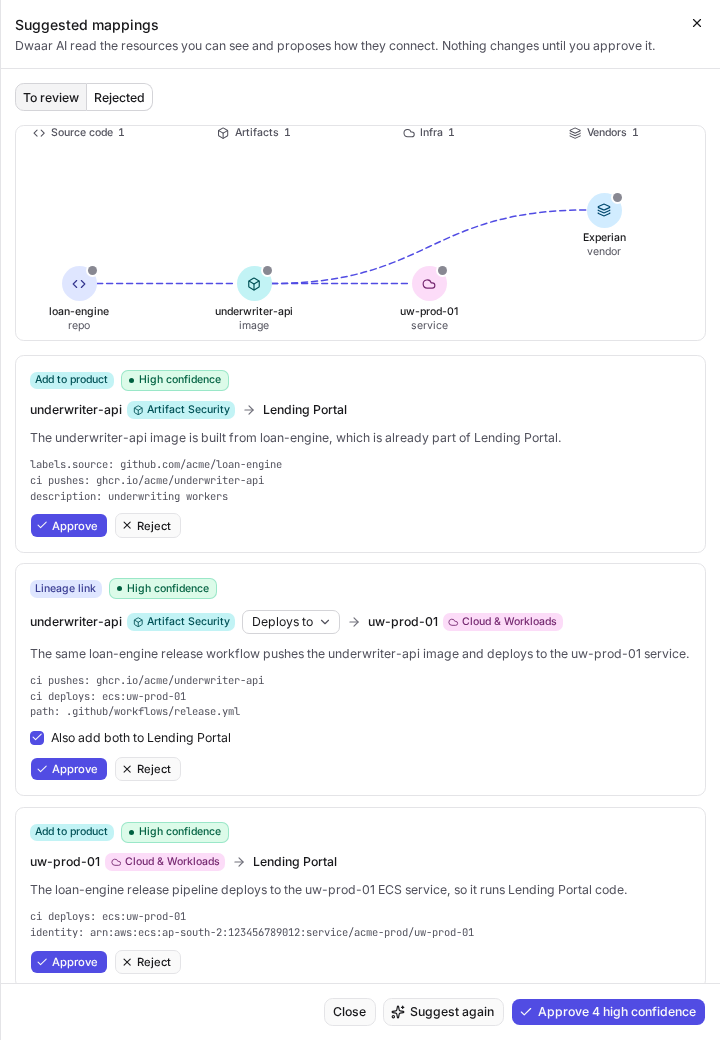
Treat confidence as a reading guide, not a verdict:
| Confidence | What it rests on |
|---|---|
| High confidence | Scan facts that directly join the two, or several signals that agree |
| Medium confidence | One solid signal |
| Low confidence | Plausible but thin. Hidden behind a Show n low confidence button |
Dwaar checks every answer before you see it. A suggestion that names a record it was not sent, crosses an organization, or breaks a product's rules is left out, and the pane tells you how many were.
Approve, change or reject
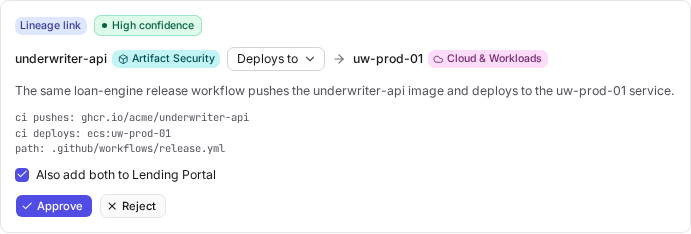
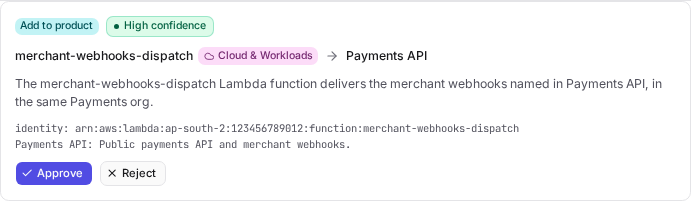
A lineage link. Correct the kind of link if it's wrong (Builds, Deploys to, Hosts, Uses, Depends on). When the link belongs to a product, Also add both to puts both ends in that product too, so clear it if you only want the link. Then select Approve.
A resource for a product. Select Approve and it joins the product.
A new product. Rename it, clear any resource that doesn't belong, then select Create product. You become its owner, and the suggestion decides its organization. To put it somewhere else, reject this one and create the product by hand.
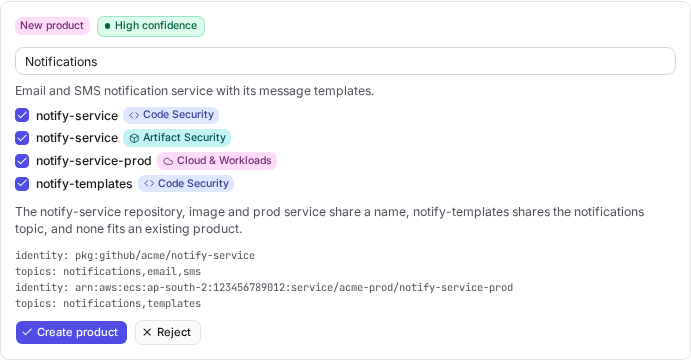
Approve all high confidence approves every high confidence suggestion as written, including creating any new product with all its suggested resources. Review those cards first if you want to edit one.
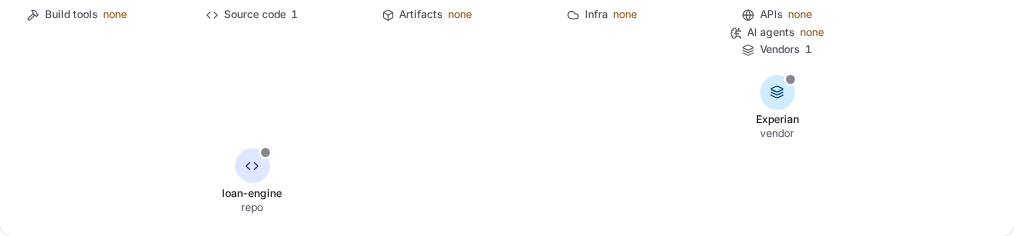
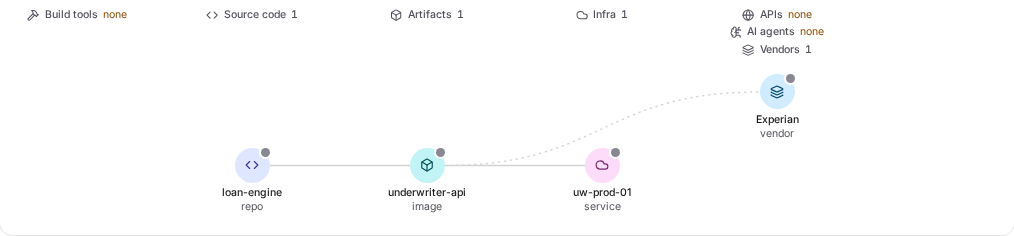
Once you approve, the change is real. Here is the same product before and after:
Change your mind
Reject moves a suggestion to the Rejected view. Dwaar AI won't propose it again, even on a new run, until you select Restore.
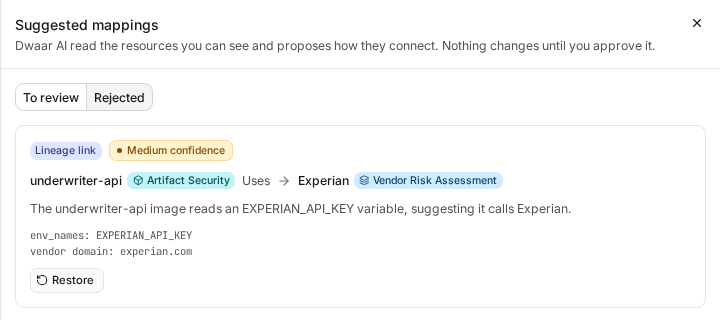
To undo an approval:
| You approved | Undo it with |
|---|---|
| A lineage link | The remove control next to the resource's name on the Lineage tab |
| A new product | Delete the product from its row menu. Its resources stay and go back to Not tracked |
| A resource added to a product | The API for now: DELETE /resources/:id/products/:productId. See the REST API |
What it knows, and where it stops
Dwaar AI reads the names, identities and provider details of the resources you can see, your products, and the links that already exist. Every run is checked against your access at the moment you ask. What is sent to the model has the full list.
- Names only go so far. Suggestions get much better once scans have collected Product context, such as the images a repository's pipeline pushes. Without it, two resources named differently may not be connected at all.
- It reads up to 200 resources per run. When you have more, the pane says how many it read. Ask from a product or a resource, or narrow your organization scope.
- Links stay inside one organization. A product holds resources of its organization and those below it, so nothing suggested crosses that line.
- It can be wrong. A confident suggestion is still a suggestion, which is why a person decides.
If you see "not enough resources in scope to suggest a mapping", there is nothing to connect yet: most runs need at least two resources. Connect an integration first.
Try this next
Open Products, go to Not tracked and select Suggest products. Approve the three suggestions you are surest of, and reject one you know is wrong. Then run it again and notice that the rejected one stays gone.