Review decisions on findings
Your open count dropped by forty last month. Was that fixes, or did someone accept the risk? And if an AI agent did it, what did it look at?
Findings › Decisions answers that. It lists every decision made on the findings in your organization scope, newest first, with who made it, through what and the reason they gave. Fixes aren't here, because a scan proves those. Everything a person or an agent decided is.
Prerequisites
findings:readon the organizations whose findings you want to see. The page shows decisions only on those.findings:exportas well, to download the report.
Open the page
Open Findings in the left rail, then Decisions under it. The page is at /findings/decisions.
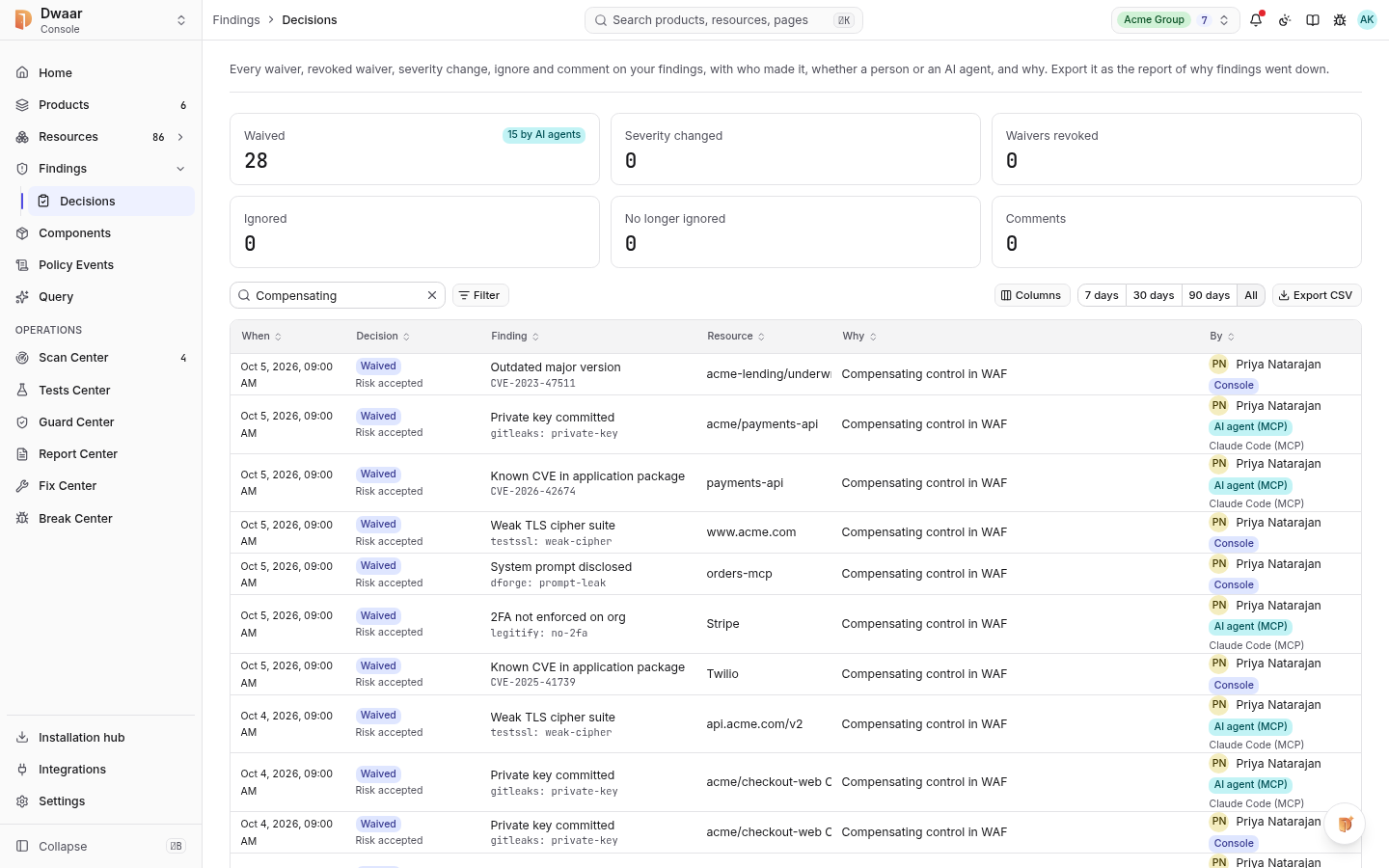
Tiles across the top count each kind of decision in the period you chose. Where AI agents made some of them, the tile says how many.
| Tile | What it counts |
|---|---|
| Waived | Findings marked accepted risk or a false positive |
| Severity changed | Severities set or cleared on one finding |
| Waivers revoked | Waivers someone ended before they expired |
| Ignored | Findings a Finding Configuration or a check setting ignored |
| No longer ignored | Findings that came back when such a setting was turned off |
| Comments | Comments added to a finding |
What each row shows
| Column | What it holds |
|---|---|
| When | The date and time of the decision |
| Decision | What changed, in words, such as "Severity lowered from Medium to Low" or "Risk accepted until 12 Feb 2027" |
| Finding | The finding's title |
| Resource | The resource the finding is on |
| Why | The reason given, or the comment's text |
| By | The person, or Dwaar for the scan pipeline, with a badge for how the decision was made |
The badge in By tells you through what the decision came:
| Badge | Meaning |
|---|---|
| Console | A person, in the console |
| AI agent (MCP) | An AI agent connected to the MCP server, with the name of its API key, such as "Claude Code (MCP)" |
| API key | A script or pipeline calling the REST API with an API key |
| Dwaar | The scan pipeline, for example when a check setting ignored a finding |
Select a row to open the finding. Its Decisions section shows the same decision next to the finding's other decisions and comments.
Narrow the list
| Control | Use it to |
|---|---|
| Decision filter | Show only waivers, severity changes, comments or another kind |
| Through filter | Show only Console, AI agent (MCP), API key or Dwaar |
| Resource type filter | Stay within code, artifacts or cloud |
| Search | Find a finding, rule or reason |
| Period | Show the last 7 days, 30 days, 90 days or All. The default is All. |
Export the report
- Set the filters and the period you want.
- Select Export CSV.
You should see a message with the row count, and a file named finding-decisions-YYYY-MM-DD.csv in your downloads.
| Group | Columns |
|---|---|
| The decision | at, decision, from, to, reason, expires_at |
| Who made it | by, via, credential |
| The finding | finding_id, finding_title, rule_id, vuln_id, severity_now, status_now |
| Where it is | resource_id, resource_name, resource_type, org_id |
via is console, mcp, api or pipeline, and credential names the API key when there was one. The file holds at most 50,000 rows. Every export is recorded in the audit log.
The audit log has them too
Every change and comment is also in the audit log, at Settings › Security, with the API key as the credential and mcp, api or console as the way it came in. A comment's text isn't copied into the audit log, only its length. Read the text here or on the finding.
Try this next
Check what your agents decided. Set Through to AI agent (MCP) and Period to 30 days, and read the Why column. Each reason should name what the agent looked at and what it found. If one doesn't convince you, open the finding and set its Status or severity back, with your own reason.