Operate an outpost
Once an outpost runs, the questions change: is it up, is it busy, did last night's scans run there, who enrolled it, and how do I upgrade it without losing work. Everything you need is in Scan Center, in the audit log, and in the host's logs.
Scan Center, Outposts
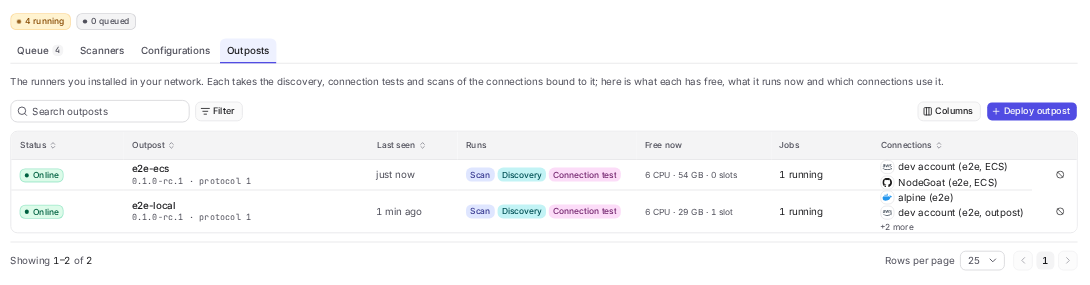
Open Scan Center, then Outposts. Each outpost has one row, refreshed every few seconds. Seeing it needs outposts:read, which Security admin and Auditor hold.
| Column | What it tells you |
|---|---|
| Status | Online, Stopping, Offline, Revoked, or Waiting for first heartbeat for one that enrolled and has not reported yet. |
| Outpost | Its name, version and protocol. |
| Last seen | Its last heartbeat. A healthy outpost reports every 30 seconds. |
| Runs | The kinds of work it takes: Scan, Discovery, Connection test. An outpost started with --driver-jobs 0 takes scans only. |
| Free now | The CPUs, memory and scan slots it has free, from its last heartbeat. Memory here is what scans may still claim by their limits: the memory offered, less what running scans hold. |
| Jobs | How many jobs run and wait, or Idle. |
| Connections | The connections bound to it. |
What each status means
| Status | Meaning | What to do |
|---|---|---|
| Waiting for first heartbeat | It spent its token and has its credential, but run has not reported yet. A running outpost reports within 30 seconds of starting. outpost status does not count: it only reads. | If it stays here, run is not running: start the service or container and read its logs. |
| Online | It reported within the last two minutes. It takes work. | Nothing. |
| Stopping | It was told to stop and is letting its running scans finish. It still reports, but takes no new work. | Nothing, if you are restarting or upgrading it. See Stopping. |
| Offline | No heartbeat for two minutes: the host is down, the outpost stopped, or it cannot reach Dwaar. | See Offline and revoked. |
| Revoked | You revoked it. Its credential no longer works, and it cannot come back. | Nothing. Its row stays as a record. |
The outpost's pane
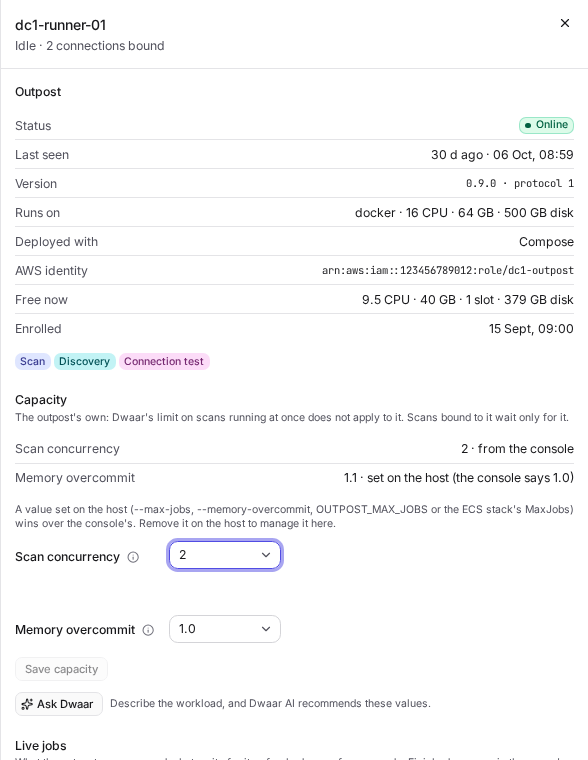
Select a row for its pane. Besides what the row shows, it has:
| Field | What it tells you |
|---|---|
| Runs on | The backend, Docker, with the host's CPUs, memory and disk. |
| Deployed with | Linux host, Docker, Compose or AWS ECS, as chosen in the Deploy outpost drawer for its token. An outpost enrolled without the drawer reads "Not recorded (enrolled by hand)". |
| AWS identity | The AWS identity the outpost runs as, such as arn:aws:iam::<account-id>:role/<role-name>, "None: its host has no AWS credentials", or "Not reported by this version" for an outpost older than 0.1.1. This is the role an AWS connection's trust policy names when the outpost assumes its role. |
| Enrolled | When it spent its token. |
| Capacity | Its Scan concurrency and Memory overcommit, and where each comes from. See Capacity settings. |
| Live jobs | Each job's kind, subject, status, start and attempt. |
| Bound connections | The connections whose work runs here. |
The link under Live jobs, Runs on followed by the outpost's name in History, opens the queue's history filtered to it.
The AWS identity is reported by the outpost when run starts. For an assumed role it shows the role, not the session, and it leaves out an IAM path: if the role sits under a path, write the path into the trust policy yourself.
Enrollment tokens
Deploy outpost creates an enrollment token, under Scan Center, then Outposts, or Installation hub, then Outpost. Creating or cancelling one needs outposts:create, which Security admin holds, and cannot be done with an API key.
| Rule | Why it matters |
|---|---|
| One token enrolls one outpost. | Create a token per outpost, even when you deploy several at once. |
| It works for one hour. | Create it when you are ready to deploy. If it expires while the drawer is still open and no outpost has enrolled with it, the drawer creates a new one: copy the commands again. |
| It is shown once. | Copy it into the deployment straight away, or leave it filled into the drawer's next step. |
| It carries the outpost's name, placement and capacity. | The outpost it enrolls starts with the Scan concurrency and Memory overcommit chosen in the drawer. |
| Closing the drawer does not cancel it. | It stays under Pending enrolments until it is spent, cancelled or expired. |
| It is spent on the outpost's first start. | After that it is worthless, so a token left in a .env file or a stack parameter cannot enroll anything. |
Pending enrolments, above the list of outposts, shows every token that can still enroll one: the name and placement it is for, who created it and when, when it expires, and its Scan concurrency. It appears only while there is one. Choose Cancel on a token you no longer need, or one that was pasted somewhere it should not be. The drawer's token step has the same action as Cancel this token.
An outpost that tries a token that no longer works is told why, and where to create a new one: the token was already used, was cancelled in the console, or expired. For a token Dwaar does not know at all, the outpost says so, and that --console may name another console.
Anyone who holds an unspent token can enroll an outpost into your tenant within its hour, and an enrolled outpost can take the work of connections someone binds to it. Treat a token like a password until it is spent, cancel it if it leaks, and check the Outposts tab for names you do not expect.
Where each run happened
The queue's Running and History views have a Runs on column. It names the outpost a run went to, or Dwaar for runs on Dwaar's own scan plane. Filter by it to see one outpost's work.
A run's place is recorded when it starts and never changes, so moving a connection to another outpost keeps its history honest.
Refused on with an outpost's name means the outpost could not take the work when it was handed over, because it was offline, stopping or revoked. Nothing ran.

Capacity and queueing
Each outpost has its own capacity, and Dwaar keeps it apart from yours on Dwaar. Your tenant's limit on scans running at once counts only the scans that run on Dwaar. Scans bound to an outpost wait only for that outpost.
Capacity settings
| Setting | Default | What it does |
|---|---|---|
| Scan concurrency | 2 | At most this many of the outpost's scans run together, from 1 to 16. Dwaar keeps the rest queued. The outpost runs fewer when the next would not fit in memory, and never more than one per 2 of its CPUs. |
| Memory overcommit | 1.0 | Multiplies the memory the outpost offers scans, 90% of what its host reports, from 1.0 to 1.3 in steps of 0.05, then 1.5, 1.75 and 2.0. See What overcommit trades. |
They are chosen in the Deploy outpost drawer and carried by the enrollment token. To change them later, open the outpost's pane, change them under Capacity and choose Save capacity. That needs outposts:update, which Security admin holds. The outpost applies them at its next heartbeat, within 30 seconds, and reports them back at once. The pane also offers Ask Dwaar when Dwaar AI is on: see Ask Dwaar.
When the host's CPUs take fewer scans than Scan concurrency, the pane says so beside it: "its 2 CPUs allow 1" on a 2 CPU host. The outpost runs at most one scan per 2 CPUs, whatever the setting.
A value set on the host wins over the console's: the --max-jobs or --memory-overcommit flag of outpost run, OUTPOST_MAX_JOBS or OUTPOST_MEMORY_OVERCOMMIT in its environment, or a number in the ECS stack's MaxJobs. The pane then shows it as "set on the host", with what the console says beside it. Remove it on the host to manage the setting in the console again.
An outpost older than version 0.1.1 ignores the console's settings and runs with its own flags. Its pane shows the console's values as "not applied" and its AWS identity as "Not reported by this version". Upgrade it, as below, to manage capacity here.
Where work waits
| Where | What you see | What it means |
|---|---|---|
| The queue, a queued scan | "Waiting on | The outpost already runs its Scan concurrency. The scan starts when one of them ends. |
| The queue, a queued or handed over scan | "Waiting for | The outpost is away. The scan runs when it is back, for up to about an hour. |
| The queue, a running scan | Waiting instead of a stage, with "Waiting on | The outpost holds the scan, which fits the host but not beside the scans already running. The outpost logs job.waiting with the memory it needs. |
| The queue, a running scan | Waiting instead of a stage, with "Waiting for | The outpost went away after it took the scan. |
| The outpost's Live jobs | Waiting | Dwaar has queued the job for this outpost and the outpost has not taken it yet. It takes discovery and tests up to four at a time. |
| The outpost's Live jobs | Running | The outpost holds the job, whether or not it has room to start it yet. |
When scans wait on a full outpost for long, the outpost is short of room, not broken. Look at Free now while it works. An outpost whose Scan concurrency is always reached and that has memory to spare can take a higher Scan concurrency. One that is out of memory needs more memory, a second outpost, or fewer categories on its heaviest connections. See Plan an outpost.
Offline and revoked
| State | What it means | What happens to bound connections |
|---|---|---|
| Stopping | It was told to stop and lets its running scans finish. | Discovery and connection tests are refused with "the outpost |
| Offline | No heartbeat for two minutes: the host is down, the outpost stopped, or it cannot reach Dwaar. | Discovery and connection tests fail at once with the reason. Scans wait for it and start when it is back, for up to about an hour. The connections keep their binding and their status. |
| Revoked | You revoked it. Its credential stopped working at once and it cannot come back. | Its running and waiting jobs fail at once, and the outpost stops their containers and exits at its next heartbeat. The connections stay bound, and their discovery and scans fail until you bind them to another outpost. |
An outpost that comes back online picks up where it left off. You do not need to do anything.
Stopping
When a service manager, docker stop or ECS tells the outpost to stop, it stops taking work, keeps sending heartbeats, and shows as Stopping while its running scans finish: for up to five minutes, or 100 seconds on ECS. The scans still running at the end are stopped and queued again. Once it exits it falls silent, and after two minutes it reads Offline. The first heartbeat after it starts again makes it Online.
So an outpost that reads Stopping for a few minutes is being restarted or upgraded. One that reads Offline has been silent for two minutes.
Cancelling a scan
Cancel a scan in the queue as you would any other. The outpost hears about it at its next heartbeat or progress report, within about 30 seconds, stops the scan's containers and removes its directory.
Upgrading
Dwaar accepts the outpost's protocol and the one before it, so an outpost does not have to be upgraded the moment Dwaar is. Upgrade it when its version in the Outposts tab falls behind the one the Deploy outpost drawer shows. Dwaar never upgrades an outpost for you.
The credential stays in /var/lib/outpost, so an upgrade never needs a new token. The old outpost shows as Stopping while its running scans finish, and scans that do not finish are queued again and run after the restart. Upgrade outside the hours your scans usually run, and the drain is all you need.
The steps below upgrade to 0.1.3. For a later version, use the tag the drawer shows. 0.1.3 makes outpost status measure the free disk of the scan root the outpost was enrolled with, not always /var/lib/outpost/scans, and its log lines carry outpost_id once each. 0.1.2 and later count at most one scan per 2 CPUs, as the console's figures do, take the name the token was created with when you give none, and exit with status 3 when Dwaar refuses them for good. An outpost on 0.1.1 still counts each running scan's CPUs by its containers' limits, so it can take fewer scans at once than the console expects.
systemd. Copy the new binary out of the new image, install it over the old one and restart the service:
docker create --name outpost-binary ghcr.io/dwaarai/outpost:0.1.3
docker cp outpost-binary:/usr/local/bin/outpost ./outpost
docker rm outpost-binary
sudo install -m 0755 outpost /usr/local/bin/outpost
sudo systemctl restart outpost
If you added --max-jobs or --memory-overcommit with sudo systemctl edit outpost, they now override the console's settings. Remove them there if you want to set capacity in the console.
The unit in Deploy an outpost now has RestartPreventExitStatus=3, so systemd does not restart an outpost Dwaar has refused for good. Add that line under [Service] of your unit too, and run sudo systemctl daemon-reload before the restart.
Docker. Pull the new image first, so the outpost is down only while it restarts, then replace the container:
docker pull ghcr.io/dwaarai/outpost:0.1.3
docker stop dwaar-outpost && docker rm dwaar-outpost
docker run -d --name dwaar-outpost --restart unless-stopped --stop-timeout 360 \
  -v /var/run/docker.sock:/var/run/docker.sock -v /var/lib/outpost:/var/lib/outpost \
  ghcr.io/dwaarai/outpost:0.1.3 run
Docker Compose. The docker-compose.yml for 0.1.0 passes --max-jobs on its command line, which 0.1.1 and later treat as a host override. Replace the file with the one in Deploy an outpost, or with the one the drawer shows, keeping your .env. Then set the tag, either in the file or with OUTPOST_IMAGE=ghcr.io/dwaarai/outpost:0.1.3 in .env, and run:
docker compose pull
docker compose up -d
AWS ECS. Deploy the stack again with the new Image. See Deploy on AWS ECS.
Once it is back, the Outposts tab shows the new version and Online. outpost status on the host shows the version of the binary it runs.
Across many outposts, upgrade one first, let it run a night's scans, then the rest.
Revoking and replacing
Revoke an outpost when its host is retired, rebuilt or might be compromised. Select Revoke on its row or in its pane, and confirm. Revoking needs outposts:delete, which Security admin holds, and cannot be done with an API key.
Revoking cannot be undone. To replace an outpost, deploy a new one with a new enrollment token, then move each bound connection to it under Where it runs. Do it in that order if you can, so the connections are never without an outpost. Then stop the old outpost's service or container, or delete its stack. A revoked outpost exits with status 3, which systemd does not restart. Docker and Compose restart it every few seconds into the same refusal, so run docker compose down or docker rm -f dwaar-outpost. ECS restarts the task whatever the status, so delete the stack.
If the host might be compromised, revoke first and replace second. Then consider the credentials of every connection bound to it: the outpost held each one in memory while it ran that connection's jobs.
Audit trail
The audit log, under Settings, Security, then Audit log, records every step of an outpost's life and every time it was given a credential. Search by action:
| Action | Recorded when | Actor |
|---|---|---|
createOutpostEnrollmentToken | Someone created an enrollment token, with the name, placement and capacity it is for. | The person. |
enrollOutpost | An outpost spent its token. | The outpost. |
cancelOutpostEnrollmentToken | Someone cancelled an enrollment token that was still pending. | The person. |
updateOutpost | Someone changed an outpost's Scan concurrency or Memory overcommit, with the values before and after. | The person. |
recommendOutpostCapacity | Someone used Ask Dwaar, with the values it recommended. What they typed is not recorded. | The person. |
revokeOutpost | Someone revoked an outpost, with how many of its jobs that ended. | The person. |
updateConnection | Someone bound, moved or unbound a connection, with its outpost before and after. | The person. |
issueOutpostCredential | An outpost fetched a connection's credential for a discovery or a test. | The outpost, on that connection. |
issueScanCredential | A scan's checkout fetched the connection's credential. For a connection only the outpost reaches, it says the outpost minted it. | On that connection. |
Together they answer the questions an auditor asks: who let this outpost in, which connections it could act for, and when it held their credentials. The credentials themselves are never in the log.
Logs and status
On the host, outpost status checks the outpost without changing anything. It prints:
| Line | What it says |
|---|---|
outpost, console, version | The enrolled outpost's id and name, the console it enrolled with, and the version of the binary. |
docker | Whether the host's Docker answers. |
aws | The AWS identity the host's credentials resolve to, or that it has none. |
settings | The Scan concurrency and Memory overcommit that apply, each "from the console" or "set on the host". |
capacity | The CPUs, memory and disk the host offers at those settings, and how many scans of the default size fit an idle host. |
console | Whether the console it reached is the one it enrolled with, and how that console sees the outpost: online, stopping, offline, or waiting for its first heartbeat. A revoked outpost, or one pointed at another console, reads as refused. |
It only reads. Dwaar records nothing of it, so it never makes an outpost Online, never changes what Free now shows, and an outpost that only enrolled stays at Waiting for first heartbeat until run starts.
| Deployed with | Status | Logs |
|---|---|---|
| systemd | sudo outpost status | journalctl -u outpost |
| Docker | docker exec dwaar-outpost /usr/local/bin/outpost status | docker logs dwaar-outpost |
| Docker Compose | docker compose run --rm outpost status | docker compose logs outpost |
| AWS ECS | The stack's Status output | The stack's TailLogs output |
Logs are one JSON object per line, so they go into your log platform as they are. The events worth knowing:
| Event | Meaning |
|---|---|
outpost.enrolled | It spent the token and has its credential. |
outpost.enrollment_token_ignored | It is already enrolled, so the token in its environment was not used. |
outpost.starting | run started, with its version, the console, the scan root, the settings that apply and its AWS identity. |
outpost.settings_applied | It applied Scan concurrency and Memory overcommit, with where each comes from: console, host, or default before the console's first answer. |
outpost.settings_overridden | A setting is set on the host and wins over the console's. |
sweep.removed | On start, it removed what a crashed run left behind. |
job.claimed | It took a job. |
job.waiting | A scan it took fits the host, but not beside the running ones. It waits. |
job.refused | A scan is larger than the host and was refused with InsufficientCapacity. |
image.pulled | It pulled an analyzer image. |
images.prepulled | It pulled the images of a new scanner catalogue in the background. |
pod.starting, pod.finished, pod.uploaded | A scan's containers started, ended, and their results were uploaded. |
credential.minted | It made a scan's credential itself, for a connection only it reaches, such as an AWS role it assumes. |
discovery.listed | A discovery finished listing, with how many items. |
test.passed, test.failed | A connection test passed or failed, with the provider. |
job.completed | It reported the job's result. |
job.stopping | It is stopping a job: cancelled, its lease lost, or given to a new attempt. |
job.dropped | It stopped a job because it was cancelled or its lease ran out. |
outpost.egress_denied | An analyzer asked for a host it is not allowed to reach. |
outpost.egress_failed | An analyzer asked for an allowed host and the outpost could not reach it. |
claim.failed, progress.failed, heartbeat.failed | A call to Dwaar did not get through. It tries again, unless the error is credential refused: then it was revoked while running, and it stops and exits with status 3. |
heartbeat.refused | Dwaar refused its credential when it started, or while its scans filled every slot: it was revoked. It exits with status 3. |
drain.waiting | It was told to stop and is waiting for its running jobs. |
drain.stopping | The drain ran out, and it stopped the jobs still running. |
outpost.stopped | run ended. |
outpost.reenrolled | Dwaar refused its credential, so it enrolled with the new token in its environment and started again. outpost_id is the new outpost, replaces the old one. |
outpost.reenroll_refused | Dwaar refused its credential, and the token in its environment no longer works, with the reason. It exits. |
Heartbeats are not logged at the default level. The outpost turning Online in the Outposts tab is the sign they arrive, and heartbeat.failed the sign they do not.
Scan containers are named scan-<run id>-<task> and labelled dwaar.outpost, dwaar.job, dwaar.scan and dwaar.task, so docker ps on the host shows what is running and for which scan.
Settings
Scan concurrency and Memory overcommit are set in the console: see Capacity settings. Everything else is a flag of outpost run. The defaults suit most hosts; change the memory ones only with Plan an outpost open.
| Flag | Default | What it does |
|---|---|---|
--max-jobs | the console's | Overrides Scan concurrency on this host. Also OUTPOST_MAX_JOBS. Leave it unset to manage it in the console. |
--memory-overcommit | the console's | Overrides Memory overcommit on this host. Also OUTPOST_MEMORY_OVERCOMMIT. Leave it unset to manage it in the console. |
--driver-jobs | 4 | Discovery and test jobs at once, besides the scans. 0 takes scans only. |
--job-cpu, --job-memory-mb, --job-disk-mb | 2, 4096, 4096 | What a scan is assumed to need before its plan is known. The disk figure is what each scan is admitted on. |
--drain | 5m | On stop, how long running scans may finish before they are stopped and queued again. |
--prepull-concurrency | 2 | Images pulled at once when the scanner catalogue changes. 0 pulls only when a scan needs one. |
--allow-private-hosts | true | Lets discovery and tests reach private, loopback and link-local addresses and plain HTTP: what an outpost is for. false applies the same guard as Dwaar, and then ignores HTTPS_PROXY for them. |
--egress-proxy | true | Each analyzer reaches only its own hosts, through the outpost's proxy. Leave it on. |
--scan-root | /var/lib/outpost/scans | Where each scan's directories go. In a container, mount it at the same path as on the host. |
--config | /var/lib/outpost/outpost.json | The outpost's credential, written at enrollment. |
--log-level | info | debug, info, warn or error. |
On systemd, change them with sudo systemctl edit outpost as in Deploy an outpost. With Compose, edit the command line of docker-compose.yml, or set OUTPOST_MAX_JOBS and OUTPOST_MEMORY_OVERCOMMIT in .env. On ECS, the stack sets the others to their defaults, and MaxJobs overrides Scan concurrency only when you give it a number.
Try this next
Open the Outposts tab, select your outpost, and follow Runs on to its history. Then open the audit log and search for issueOutpostCredential. Matching the jobs in the one to the credential fetches in the other, once, is the best way to be ready for the day someone asks what that outpost could touch.